iOS device commands in KACE Cloud
Prerequisites
The iOS menu provides several commands that you can use to manage an iOS device.

-
Check for OS updates: Call up the most recent set of updates that may not already be visible next to the Operating System entry in the General section.
-
Update OS: Forces an install of the most recent OS update to the selected device. Device users are also prompted by Apple for OS updates.
-
Enable Lost Mode: Prevents the selected device from being unlocked by a third party. A phone number, footnote, and/or message may be displayed on the lock screen for the benefit of the device user. For example: Please bring this device to an administrator to unlock. A device admin can then request the device location or play a lost mode sound. Lost mode can also be disabled.
- Go to Devices in top navigation.
- Select a device or devices.
- In the right panel, click the iOS dropdown to see all actions.
- Choose Enable Lost Mode.
- Once lost mode has been enabled, the compass icon will be present next to the device name, as highlighted below.
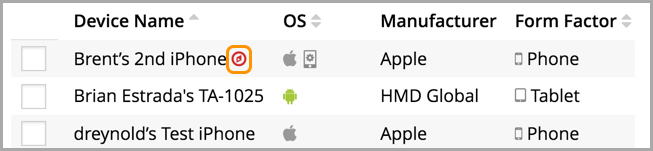
In lost mode, the device automatically sets itself to low-power mode. It periodically turns off and on. This status may cause a device to not initially respond to commands, but when the phone returns to the on setting, the command runs.
- Disable Lost Mode: Requires the passcode that was already set on the device before it was put into Lost Mode.
- Locate Device: When a device is in Lost Mode, a device admin can send a Locate Device command. The device is notified that the location is being tracked and the location information is returned from the device, if the device is responding. A device admin can then view the coordinates and movements, including viewing the location on a map.
- Play Lost Mode Sound: When a device is in Lost Mode, a device admin can play a lost mode sound to help the device user locate the device. Note that even if the media sound is turned off on the device, the lost mode sound plays.
- Clear User Restrictions: Removes the restrictions passcode from the selected device and reset all user-defined restrictions to default settings.
- Remove Activation Lock: See Enable activation lock on iOS devices
- Wake Up Device: Allows an admin prompt an iOS device to check in to the KACE Cloud service to retrieve queued commands.